Topview T1
What will you create next?
Featured Examples
See the before/after transformations and try the prompt yourself.
Before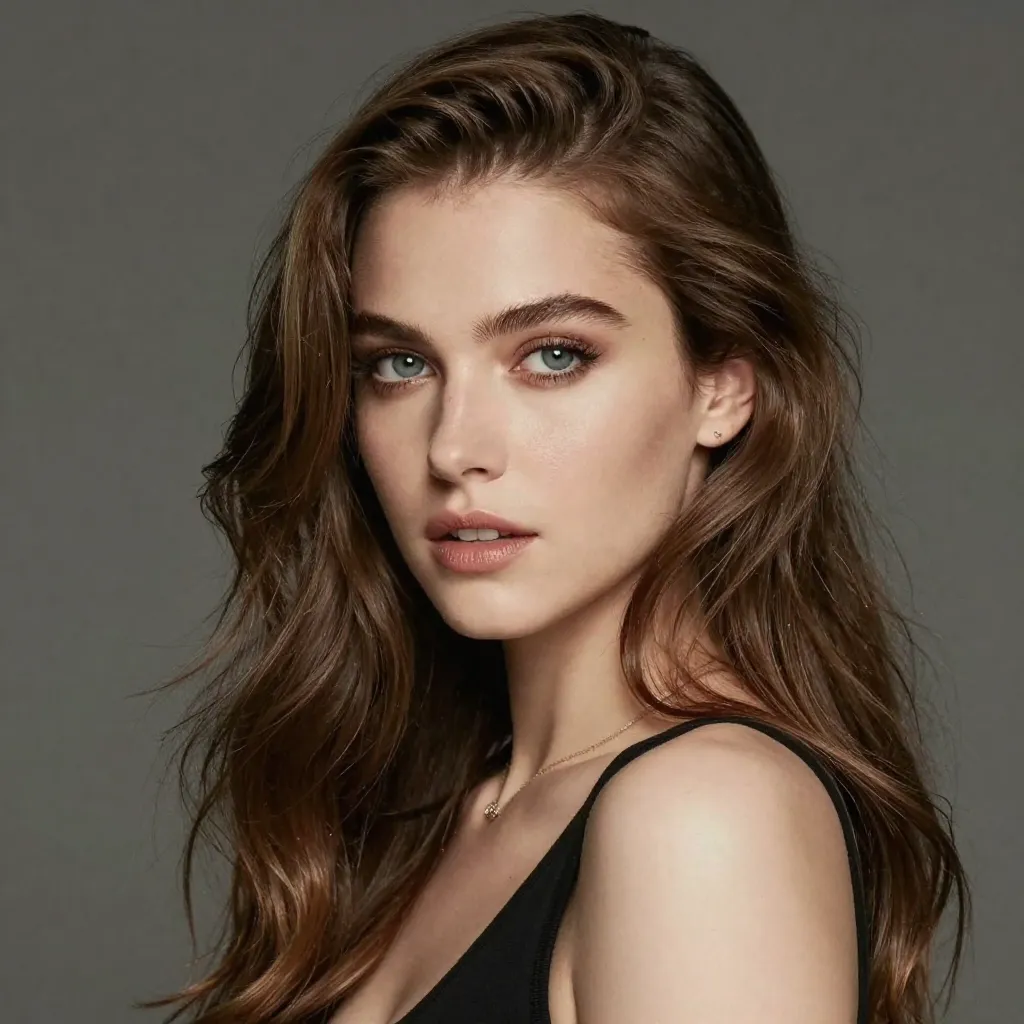
After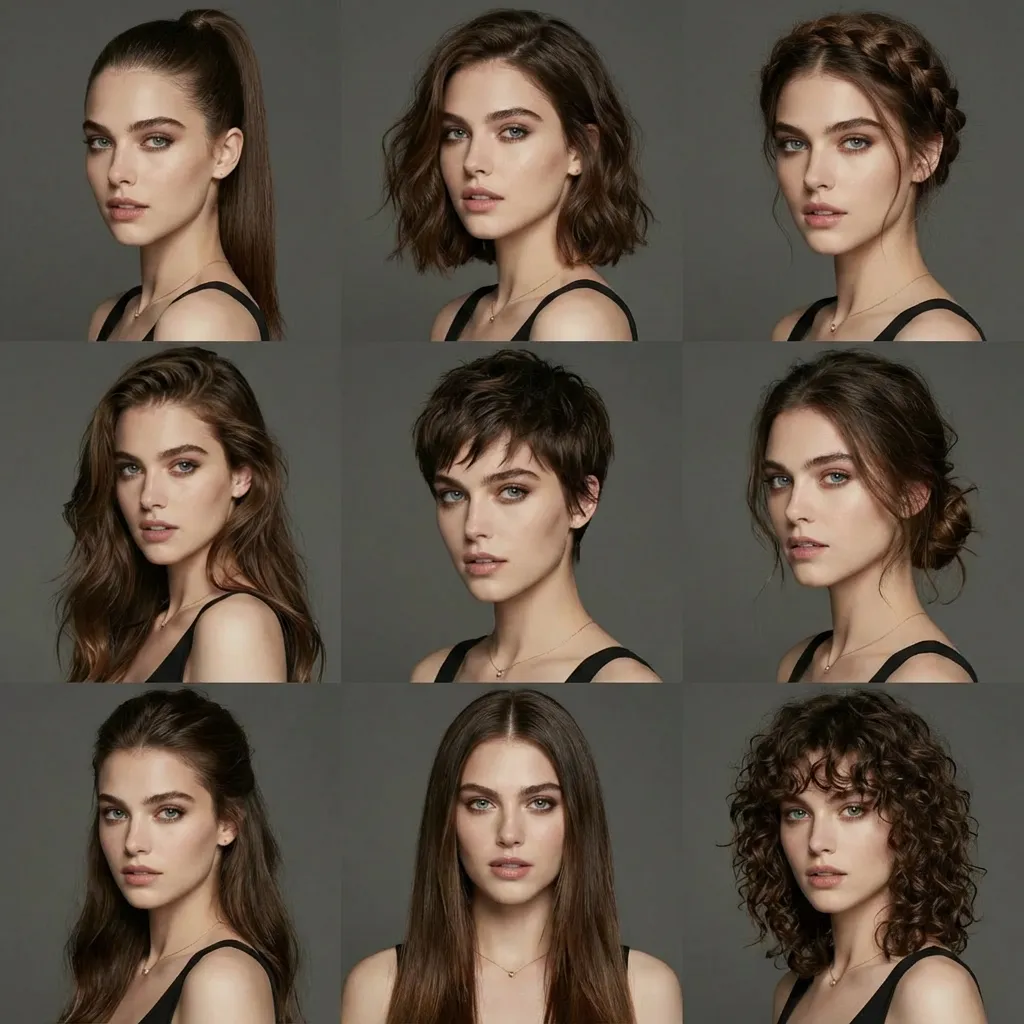
Change Multiple Hairstyles
Prompt
Generate avatars of this person with different hairstyles in a 3x3 grid format
Sharper visuals · Accurate text · Consistent subjects
Nano Banana 2.1 AI Image Generator for 4K Images and Accurate Text
Nano Banana 2.1 brings text generation and reference-led editing into the browser. A request can use up to 10 images, 14 aspect ratios and 1K, 2K or 4K output. Develop a layout around a subject and exact wording, then inspect the details before downloading or continuing the edit.
- Up to 4K output
- Accurate text rendering
- 10 reference images
- 14 aspect ratios
- Text-to-image and editing
What Is Nano Banana 2.1?
A useful image brief separates what the picture contains from how it should look. With Nano Banana 2.1, text can define the scene and its wording, while references establish a person, product, palette or composition. Explain the role of each input so the intended result is clear. For a product launch image, that might mean one photograph for the item itself, another for the surface it rests on and a written instruction reserving space for a headline. This division makes the result easier to assess: you can check the product, environment and layout separately instead of judging only whether the picture looks attractive.
A poster, a character series and a product scene need different kinds of review. Check spelling and hierarchy in the poster, recurring features in the character, and physical details in the product. A convincing overall image can still contain a detail that needs another edit. Before generating a series, decide which features define the subject: a particular silhouette, a garment fastening, the spacing of a label or a recurring color combination. Use those same criteria when comparing the Nano Banana 2.1 results. A consistent review process is more useful than adding a general instruction to make every image perfect.
The workspace keeps the brief, references, settings and results together. You can preview a completed image, download it or return to it as the starting point for a further revision. For a revision, identify the part that already works before requesting the change. If the composition is right but the background is distracting, keep the subject and framing in the brief while describing a simpler setting. Review the whole output afterward, because a generated edit can affect details beyond the named area. Save the version you prefer before trying another direction so you can compare the alternatives clearly.
Popular Use Cases
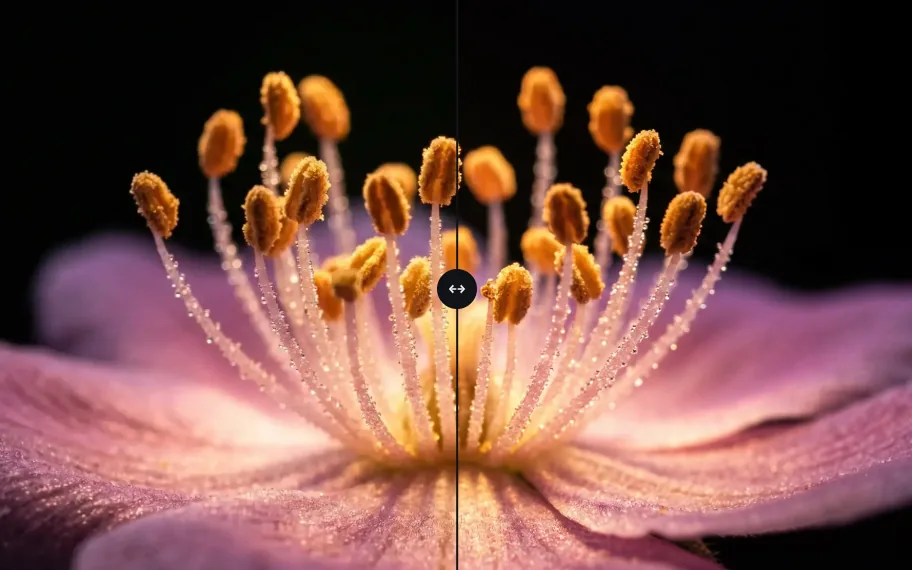
4K detail for display and print
Plan a close-up around the material or surface you want to show. Inspect reflections, fine textures and edges at the resolution needed for the final layout.
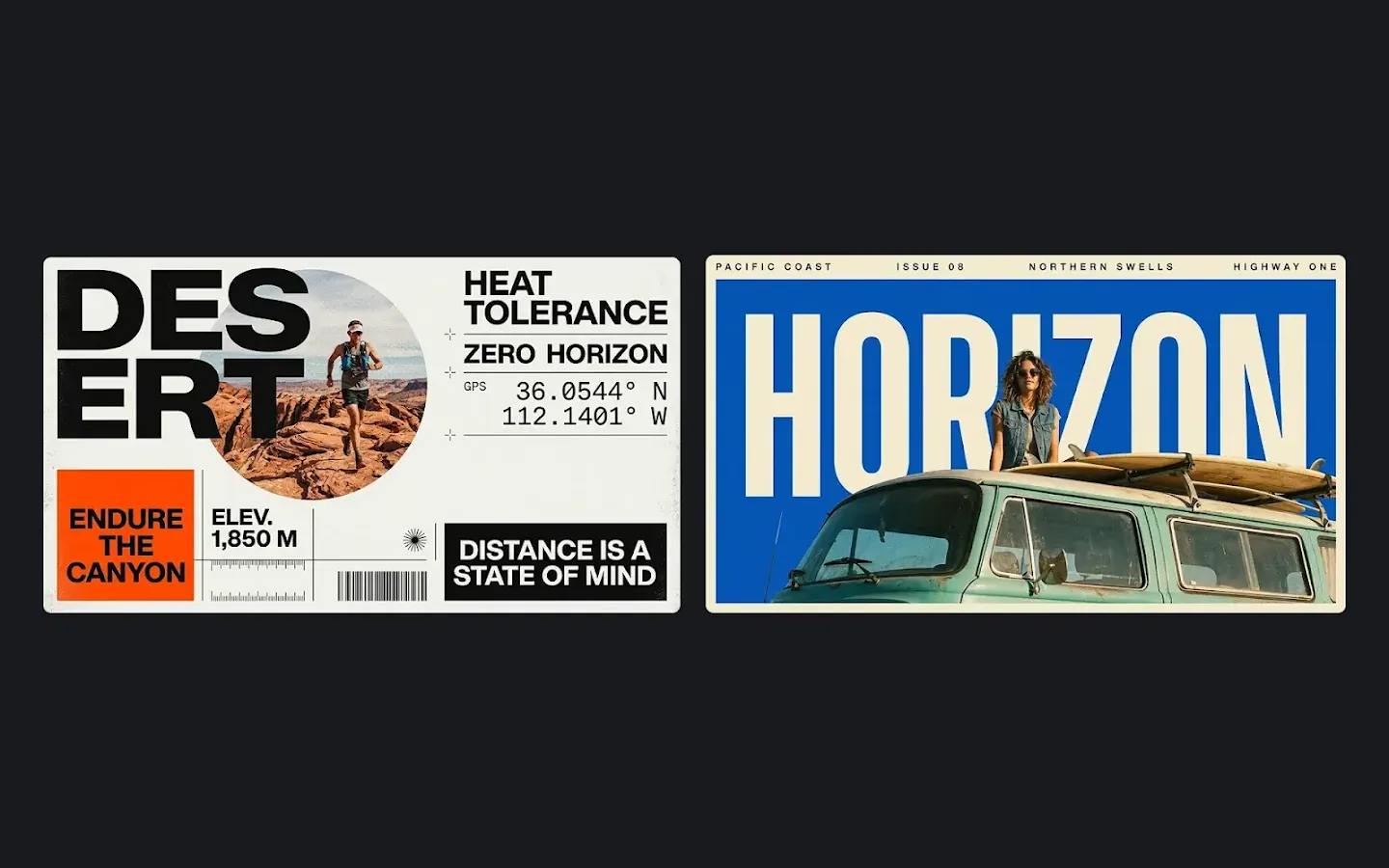
Posters and advertising copy
Give a poster a clear reading order: headline, main visual and supporting information. Supply the exact text and review the generated words before publication.
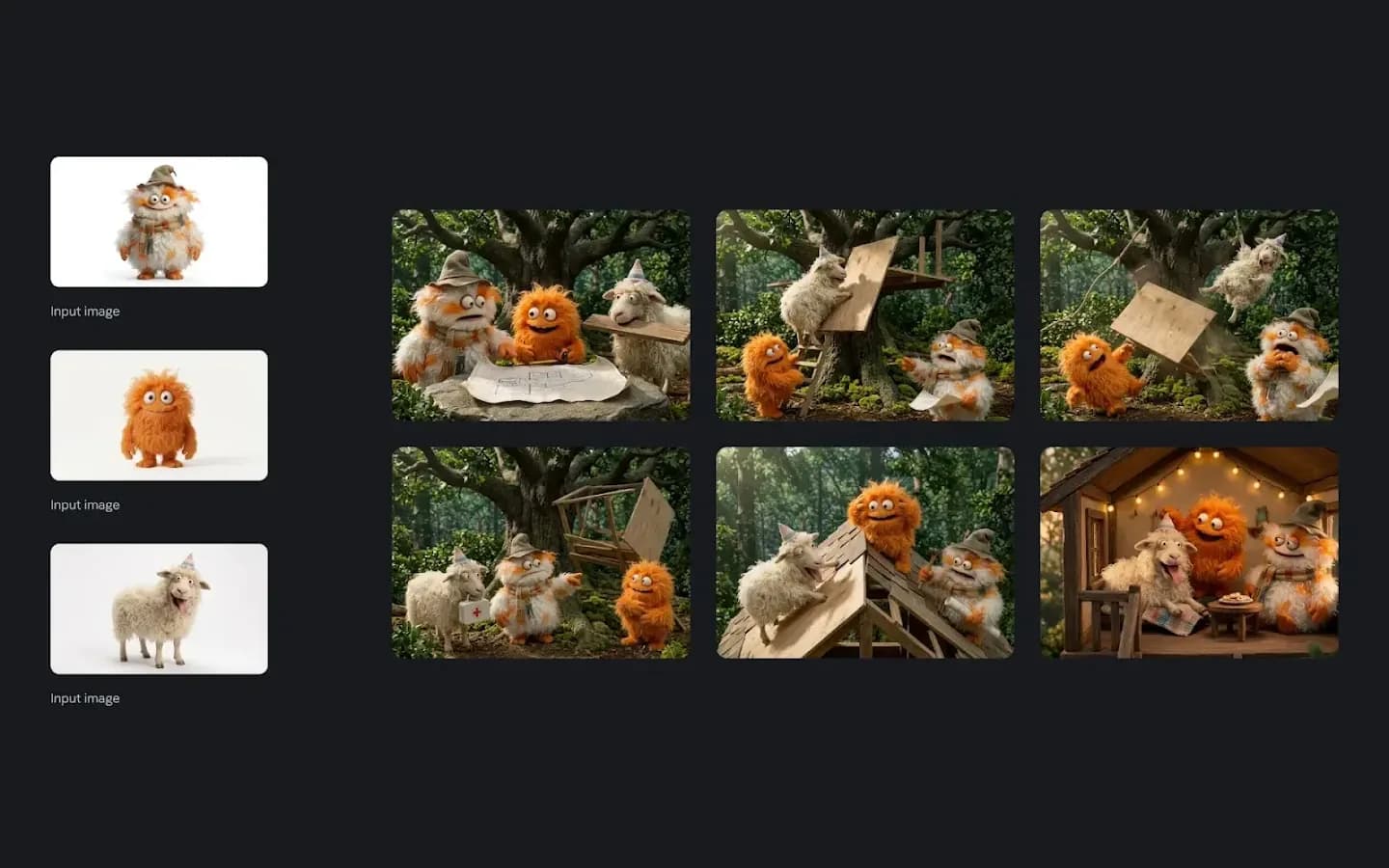
Character consistency for series content
Build a character series from shared references while varying the scene or expression. Compare the face, proportions and costume details across the set.
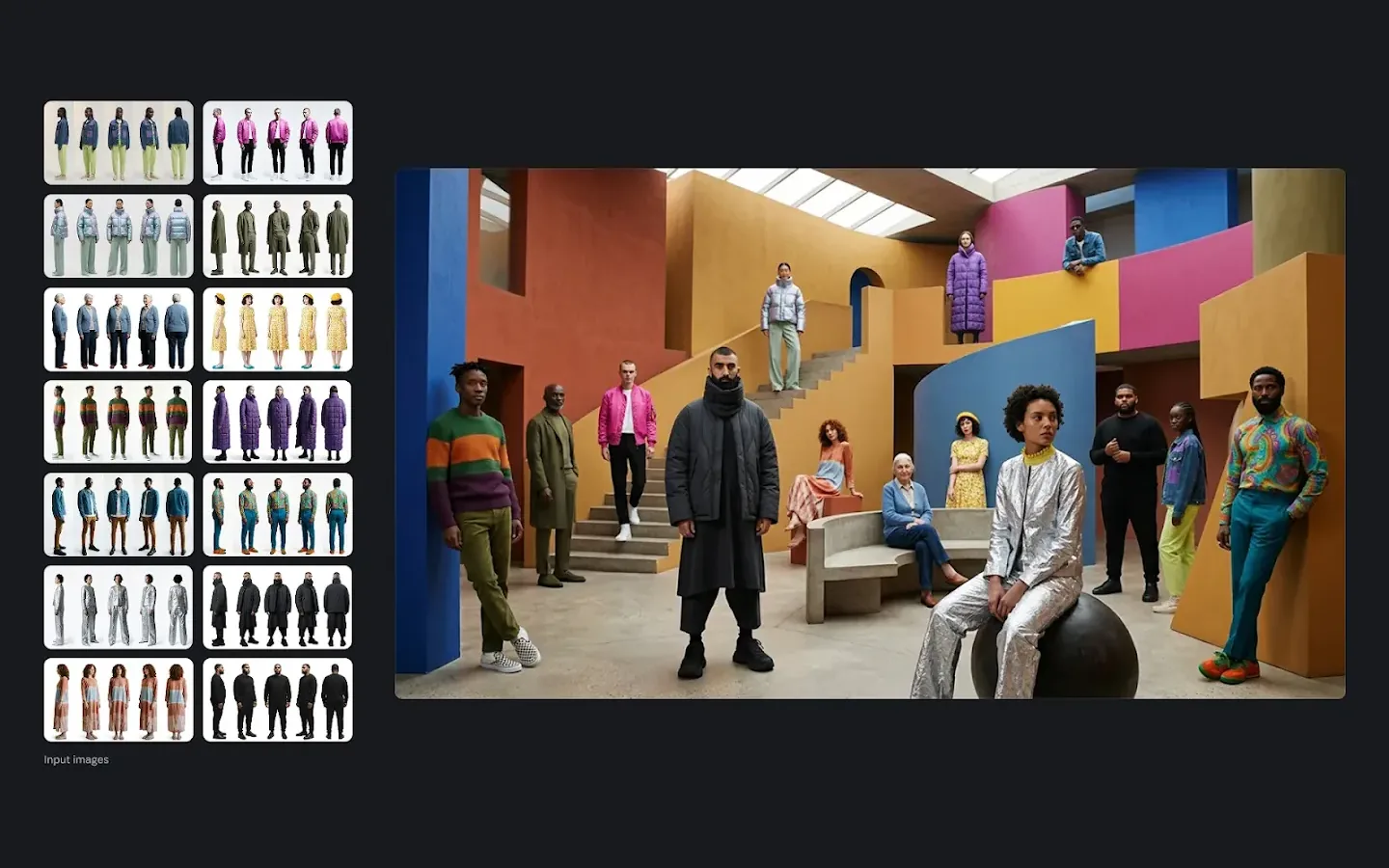
Multi-image composites
Combine references for a garment, accessory and subject into a styling concept. Check fit, shape and identifying details before treating the result as a product representation.
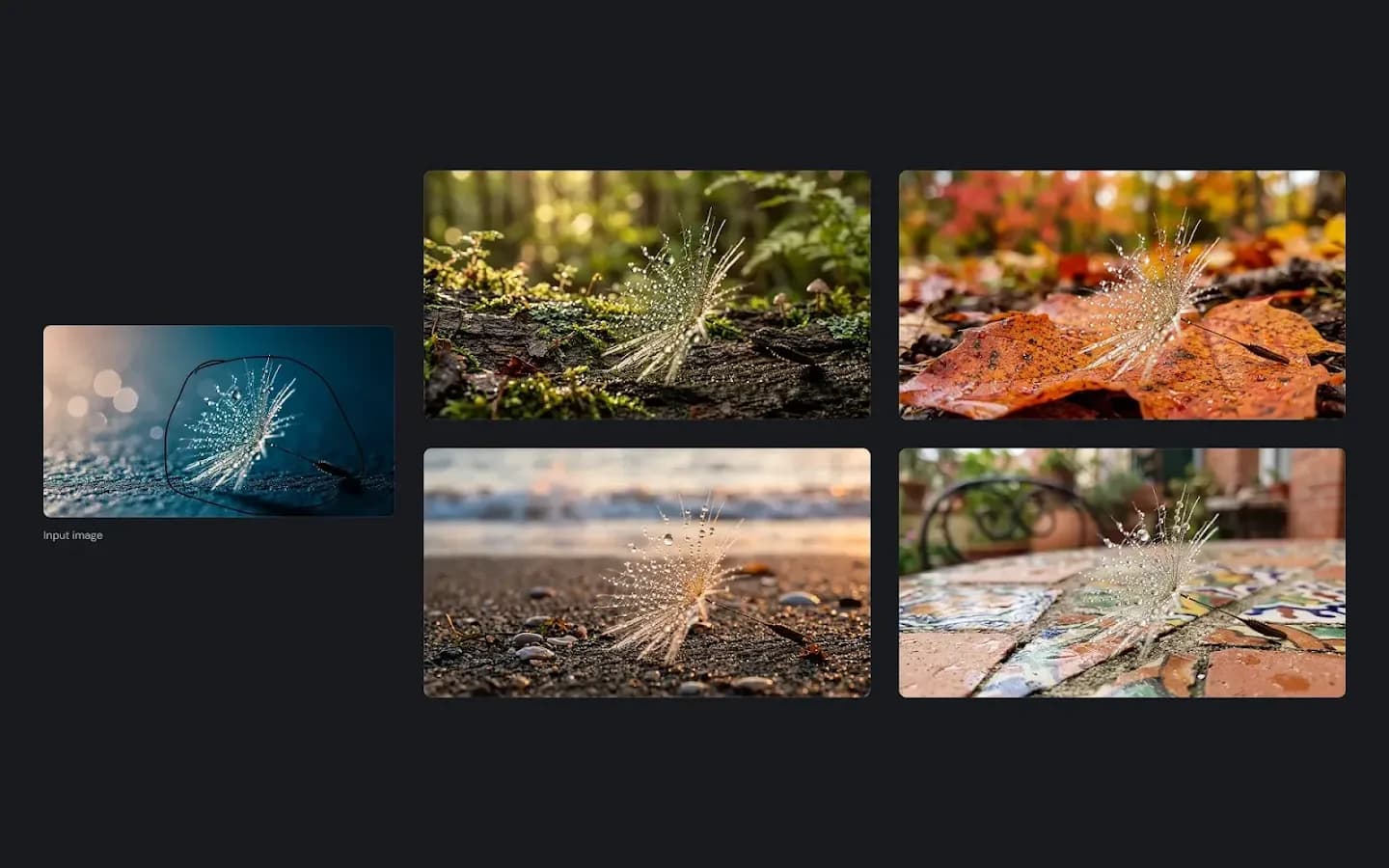
Background replacement in one sentence
Request a new environment while naming the subject details to preserve. Compare the subject with the original after each location variation.
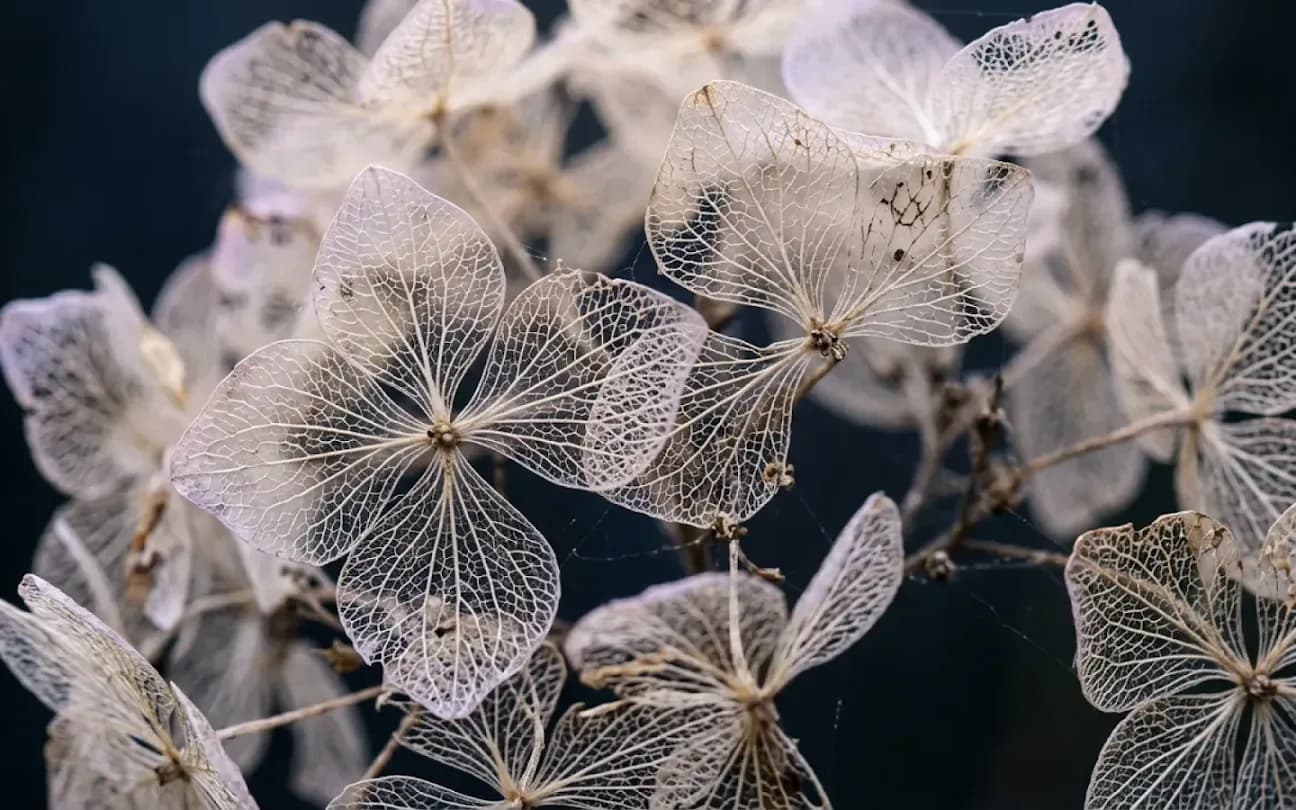
Photorealistic product and lifestyle imagery
Explore lighting and composition for a product or lifestyle image. Review physical details against real references before including the output in a listing or campaign.
What's New in Nano Banana 2.1
Sharper images at every resolution
Use the first result to inspect the silhouette, edges and material treatment. Increase the output resolution when the layout requires closer inspection or a larger final image.
Closer prompt adherence
Explain positions and relationships explicitly: the subject on the left, the label above the product or an object behind another. Check the generated arrangement against those instructions.
Better words inside the picture
Supply exact wording and describe its position and visual hierarchy. Read every generated word before using a poster, menu, label or information graphic.
Steadier subjects across edits
Reuse a clear reference when a subject appears in several images. Compare distinguishing features across the set instead of assuming that separate generations will match perfectly.
More references per request
Up to 10 reference images can contribute to a request. Assign separate roles for identity, outfit, setting or style to make a complex brief understandable.
Key Capabilities
High-resolution output up to 4K
1K, 2K and 4K are separate output choices. Match resolution to the intended layout, crop and viewing size, then inspect textures and edges in the generated file. A higher setting does not correct an unclear brief or a wrong composition by itself. For example, an 8:1 banner needs a different arrangement of the subject and text than a square post, even when both use 4K. Establish the composition first, then use the resolution needed for the final asset. Check the downloaded dimensions in your layout tool before preparing a crop or print design.
Reliable on-image typography
A Nano Banana 2.1 brief can include a headline, label or short passage. Quote the exact wording and define its placement, then check spelling, spacing and contrast in the output. Separate the visual hierarchy from the wording: explain which phrase is the headline, which information is secondary and where the audience should look first. If exact typography is essential, plan to verify or finish it in your design application. This is particularly useful for prices, contact information and multilingual copy, where a small character error can change the meaning of the finished graphic.
Consistent characters and products
A reference can guide a recurring character, mascot or product into another scene. Identify the features that must remain recognizable and compare them across the resulting images.
Multi-reference composition
Several references can inform one Nano Banana 2.1 composition. Identify one as the subject, another as the wardrobe and a third as the lighting direction, rather than asking the model to combine them without context. Reference order is useful only when the prompt explains what that order means. A clean product photograph should define the item, while a mood image can supply atmosphere without replacing its shape or label. If two references disagree, decide which one should take precedence and state that choice. Removing a confusing image can be more effective than adding another example to the set.
Natural-language editing
Use words to request a new background, color, object or time of day. State the parts to preserve as well, and inspect whether the generated edit changed anything outside the intended area.
Flexible formats
The selector offers 14 aspect ratios plus Auto, including 8:1 and 1:8. Compose for the destination—such as a wide header or tall story—before generating instead of relying on a later crop.
How to Create Images with Nano Banana 2.1
- 1
Describe the image
Choose text generation or image editing, then describe the subject, setting and intended change. The 20,000-character prompt limit leaves room for exact wording and layout constraints when they are needed.
- 2
Add references and settings
Add references for the details that matter. Choose an aspect ratio or Auto, select 1K, 2K or 4K, and set PNG or JPG as the output format.
- 3
Generate, review and refine
Submit the task and inspect the result at full size. Download a suitable image, continue editing it or return to the saved settings from history for another attempt.
Prompting Tips for Better Results
Put exact wording in quotation marks
Provide the exact headline and describe where it belongs. Specify a readable size and typographic direction, then proofread the rendered text.
Give every reference a job
Refer to uploaded images in their order and give each a purpose. This helps distinguish a subject reference from a style or lighting reference.
Say what must stay the same
Name the face, logo or object shape that should remain before describing the revision. Review those same details in the edited result.
Draft at 1K, finish at 4K
Use 1K to assess the initial composition. Once the direction is settled, choose a higher resolution such as 4K when the intended output needs it.
Describe light and lens
Describe where light comes from and how it affects the subject. A soft window source or a low evening sun gives a concrete direction to the scene.
How Nano Banana 2.1 Compares
| Feature | Nano Banana 2.1 | Nano Banana 2 | Nano Banana Pro | Nano Banana 2 Lite |
|---|---|---|---|---|
| Positioning | Latest generation, balanced quality and efficiency | Previous mainstream model | Flagship model for premium quality | Lightweight model for fast drafts |
| Resolution | 1K / 2K / 4K | 1K / 2K / 4K | 1K / 2K / 4K | 1K |
| Reference images | Up to 10 | Up to 8 | Up to 8 | Up to 10 |
| Distinctive strength | Text rendering, subject consistency, multi-reference | Google Search grounding | Complex composition and fine texture | Speed and volume |
Choose according to the required controls. Nano Banana 2.1 offers reference-led work up to 4K; Nano Banana 2 adds optional search grounding; Pro provides another high-resolution editing workflow; Lite uses fixed 1K output for drafts. Compare the result on your own brief.
Frequently Asked Questions
Is Nano Banana 2.1 the same model as Nano Banana 2?
Nano Banana 2.1 is a separate release in the family. Its workspace supports text generation and reference editing at 1K, 2K or 4K; select a model by the controls and results your project needs.
Can I use Nano Banana 2.1 without uploading a reference image?
A written brief is enough in text-to-image mode. Image editing needs a reference so the model has a visual starting point for the requested change.
What happens when the aspect ratio is set to auto?
Auto lets the model select the canvas from the brief in text mode. In editing, the reference proportions help guide the result's shape.
Which file types and sizes are accepted for reference images?
Upload JPEG, PNG or WebP, with a maximum of 20 MB per file and 10 images per request. Clear references with an identifiable subject are easier to describe in the brief.
Which output formats can I download?
Choose PNG or JPG before submitting. PNG is useful when preserving image detail matters; JPG is convenient when a smaller file is preferred.
Does the aspect ratio affect the resolution?
Resolution and ratio control different things. The ratio sets the shape, so a 4K 8:1 banner has different dimensions from a 4K square image.
How long can my prompt be?
The limit is 20,000 characters. Use a short description for a simple image and a structured brief when several text, layout or editing constraints must be communicated.
Can I keep editing an image I have just generated?
Continue editing loads a generated result as a reference for the next request. Describe the next revision and check whether previously correct details remain intact.
Does Nano Banana 2.1 support Google Search grounding?
Nano Banana 2.1 does not offer search grounding here. That option belongs to Nano Banana 2; include verified factual context directly in a 2.1 brief.
How many images can I generate at once?
A batch can contain up to 6 images. Each image is a separate generation with its own processing and credit charge.
Are credits refunded if a generation fails?
A failed generation receives an automatic credit refund. Before retrying, check the input files and revise any prompt issue indicated by the error.
How are Nano Banana 2.1 generations billed in a team workspace?
Tasks submitted inside a team workspace use the team's credit balance. Personal-workspace tasks use the balance associated with your own account.
Why does an edited image keep some details I wanted to change?
Make the revision explicit and avoid conflicting preservation instructions. Describe the desired final scene, then compare the output with the original to see whether another edit is needed.
Where can I find my earlier generations?
Your recent results appear in generation history and the history page. From there you can inspect a result, download it or reuse the request for another attempt.
Start Creating with Nano Banana 2.1
Prepare a subject, reference roles and a canvas, then develop your next Nano Banana 2.1 image at the required resolution.
Create with Nano Banana 2.1