0/1
00 chars
Topview T1
What will you create next?
Kling 3
Cinematic 4K videos with native audio, 3-15s, Standard & Pro

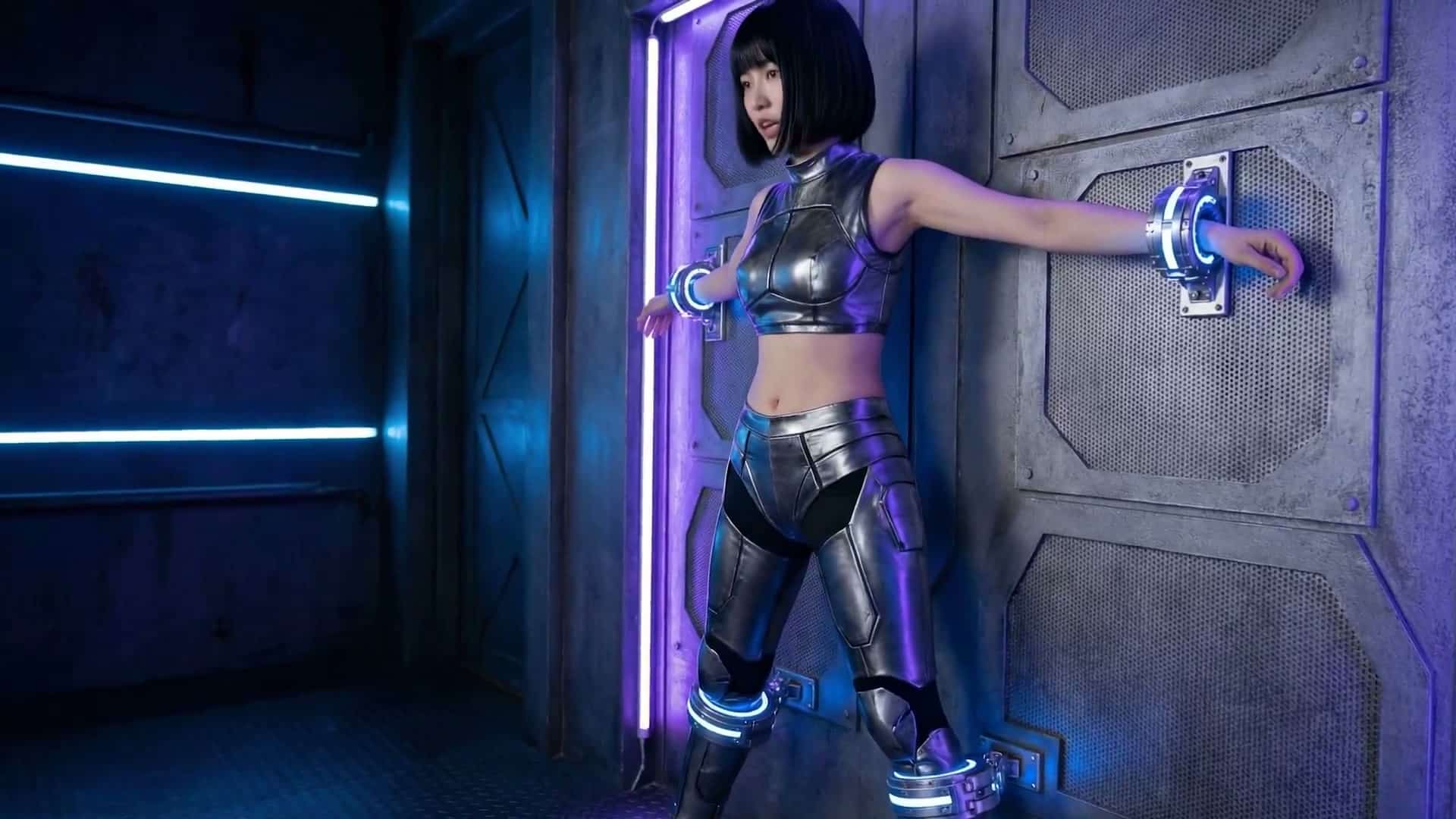
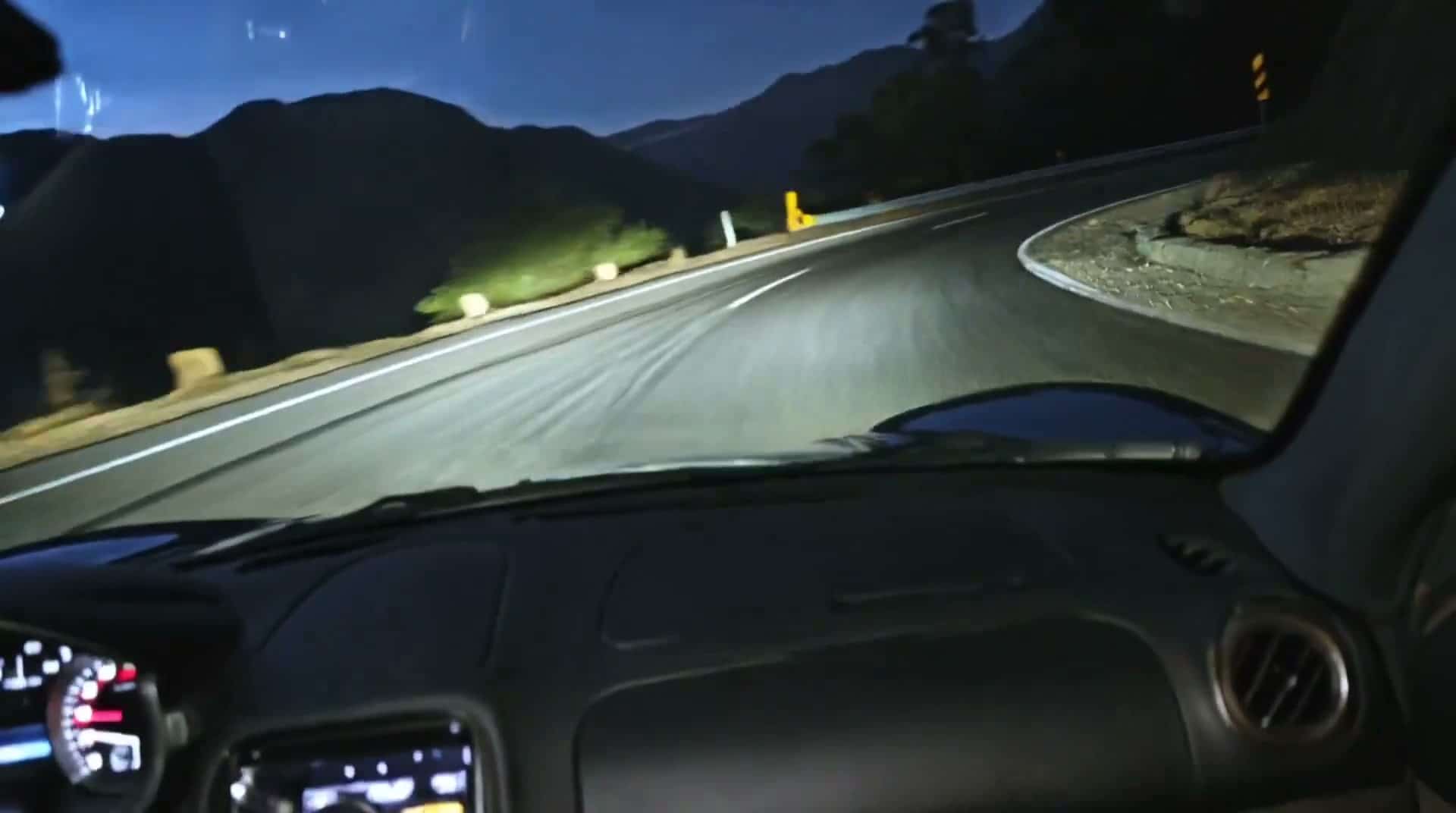
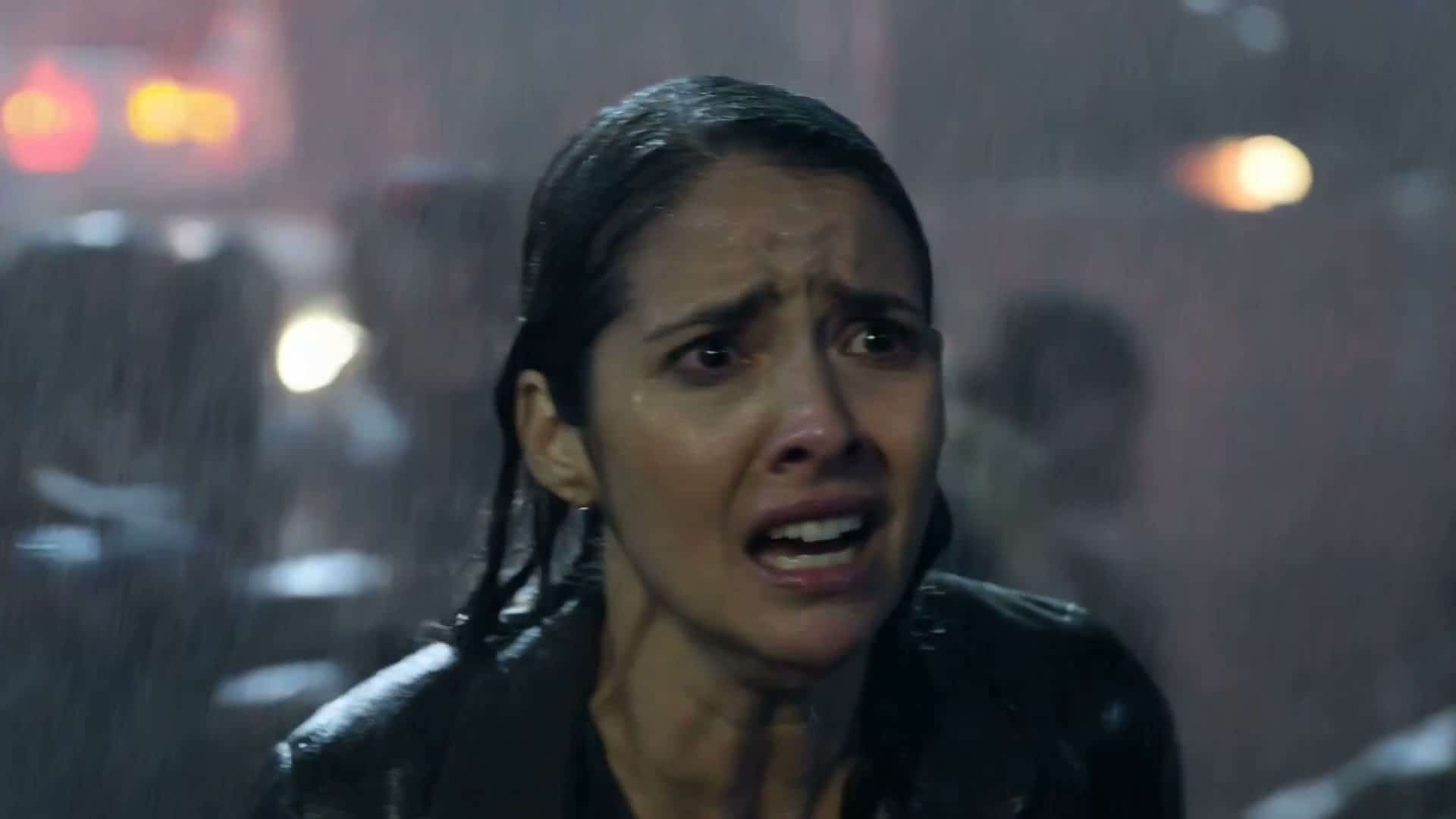
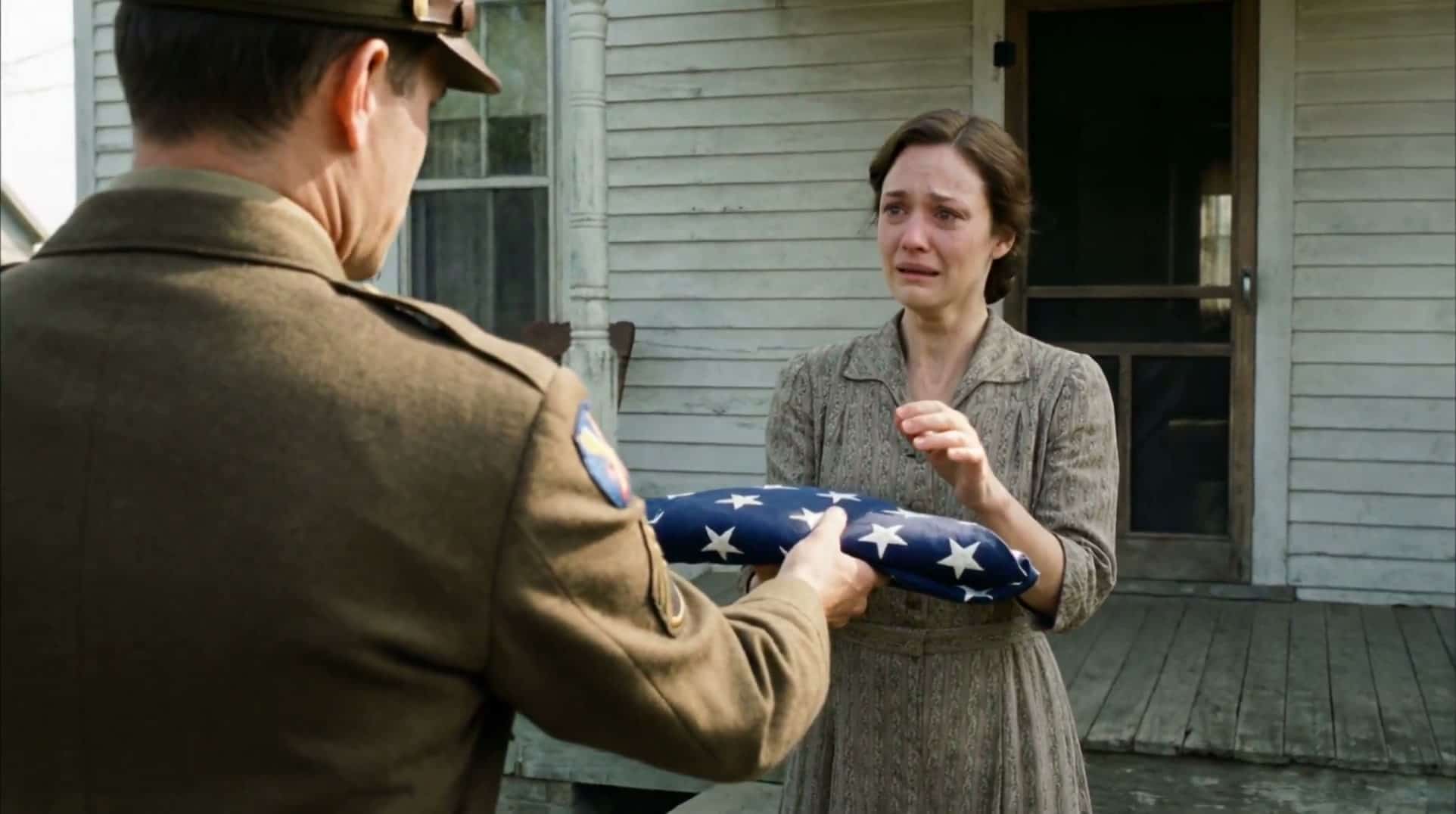
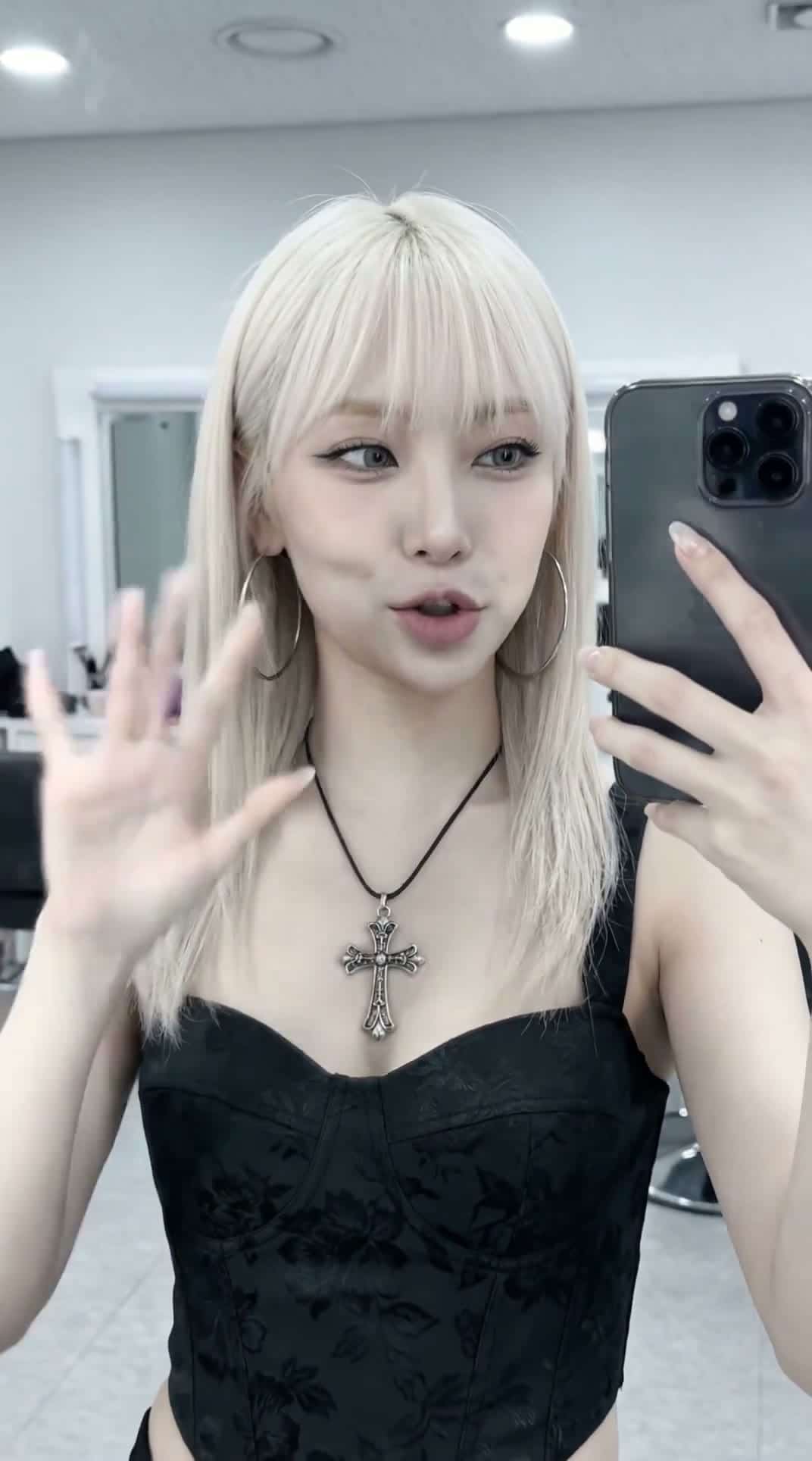
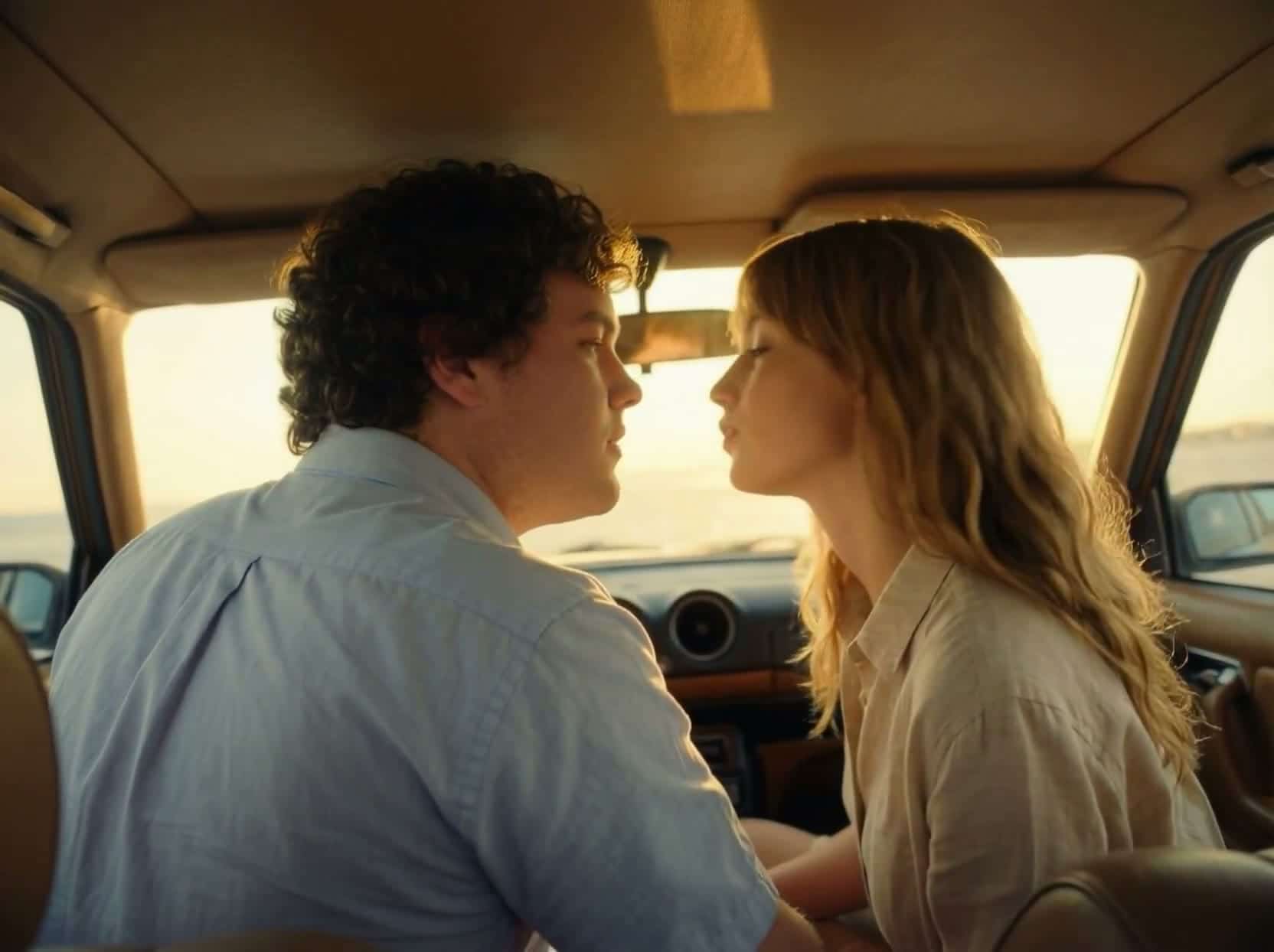
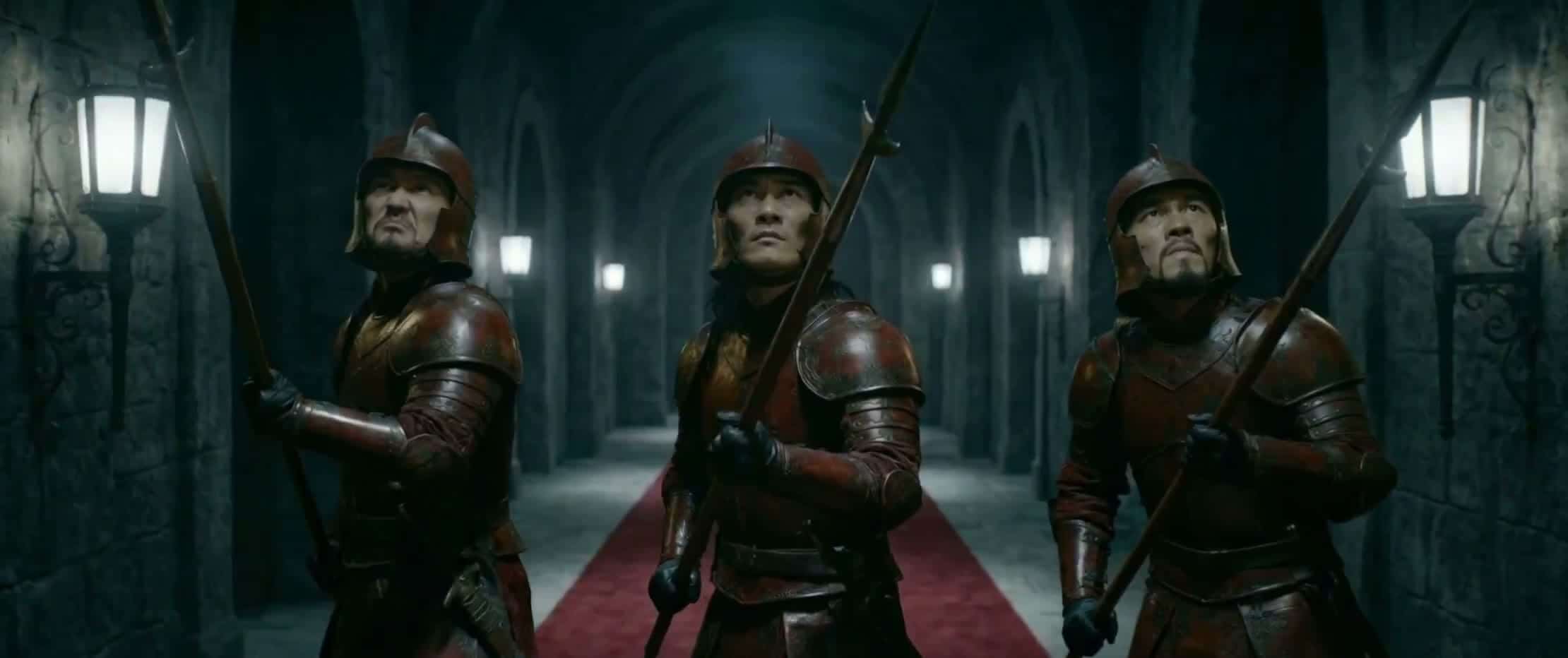
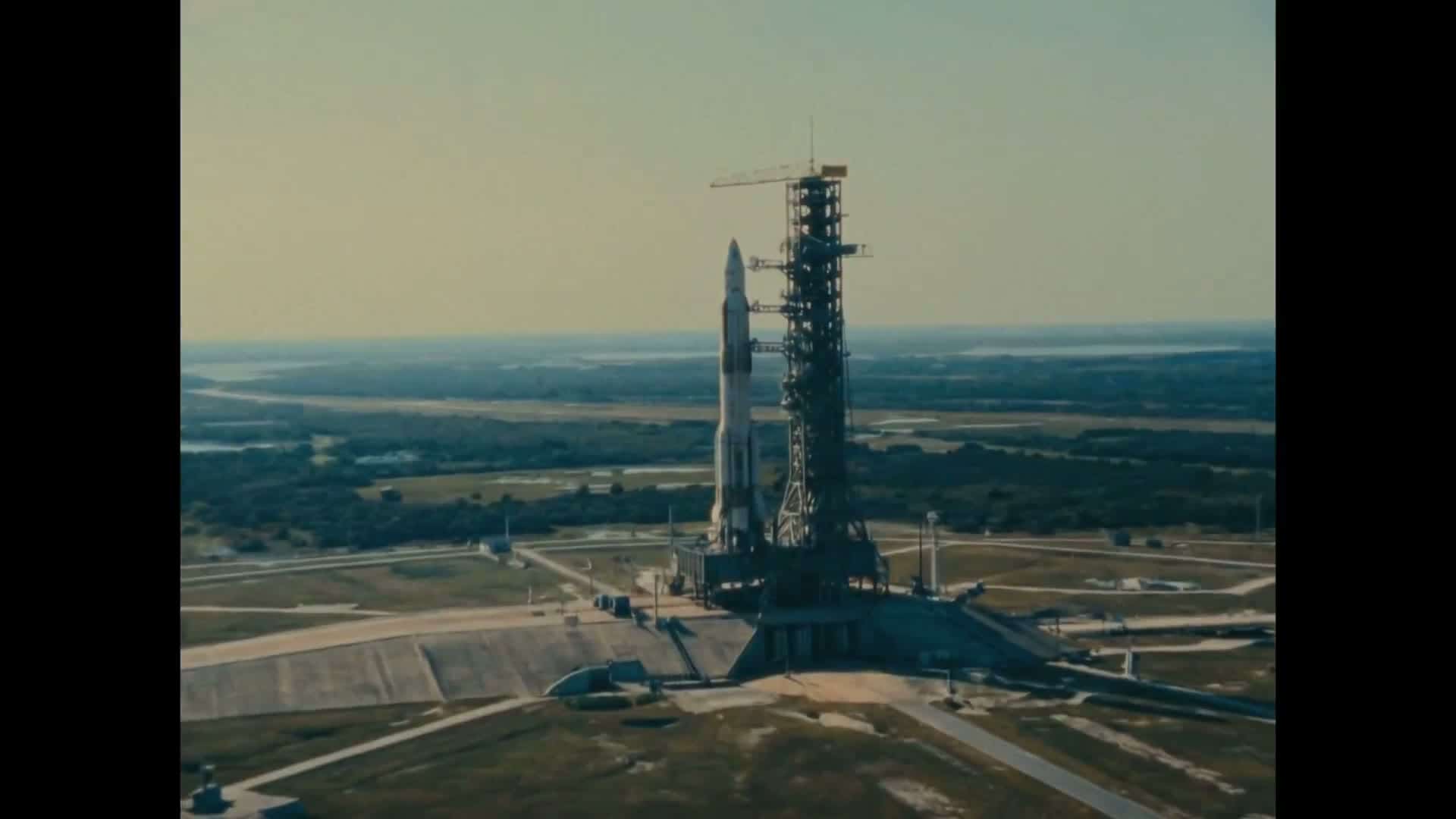

Build a brief around the moment that matters
Kling 3 video: shape the scene, timing and sound
How Kling 3 AI Works
A useful first take starts with a focused scene and deliberate settings. Separate what happens in the frame from how the camera sees it.
1
Write Your Scene
Describe who or what is in the scene, what changes during the shot and where the camera begins. An image reference can establish a starting composition.
2
Choose Quality & Duration
Pick Standard or Pro, then select 3, 5, 10 or 15 seconds and a frame shape. Review the displayed credit estimate for those settings before submitting.
3
Enable Native Audio
Enable sound if the scene needs it. Describe the ambience and audible actions in the brief, keeping spoken lines short enough for the selected clip length.
4
Generate & Export
Review the full clip for the intended action, subject appearance and audio timing. Revise a specific instruction if necessary and download the take you want to develop further.
Key Features of Kling 3
Quality, duration and audio are separate decisions. Use the available controls to match the size of the idea, then guide its visual details through the prompt.
Native Audio & Voice Control
Generated sound can accompany the scene. Where voice controls are available, up to 2 custom voices can guide Chinese or English dialogue; inspect pronunciation and synchronization in the output.
Choose the quality for your take
Standard and Pro provide different quality and credit choices. Compare the detail and movement in your own scene rather than assuming every shot needs the same setting.
Multi-Shot AI Director
A sequential brief can describe more than one shot. State each change of view clearly and keep the character description consistent so the intended relationship between shots is understandable.
Describe movement concretely
Explain the path, speed and contact points of an action, such as a ball rolling down a slope or fabric lifting in a breeze. Review interactions in the result; generated movement can still contain artifacts.
Why Choose Kling 3
Use Kling 3 when you want to explore a scene through its quality, duration and sound choices without changing the underlying brief.
Built-in Audio
Sound can be generated alongside the visual take. Check dialogue, effects and ambience together before deciding whether the audio is suitable for the final edit.
Standard & Pro Quality
Start with the setting that fits your credit budget and compare it with another quality option when the scene needs more detail. Keep other settings fixed for a useful comparison.
Flexible Duration
The workspace offers 3-, 5-, 10- and 15-second clips. Allow enough time for the action to resolve instead of squeezing several unrelated events into one take.
Review and keep your chosen take
Preview the result in your workspace and download the version you want to keep. Follow the site's privacy and retention information when deciding which reference materials to upload.
Who Uses Kling 3?
The following briefs focus on one production decision at a time: movement, sound, framing or a short narrative beat.
Filmmakers
Compare two ways of staging the same action. Keep the subject fixed while changing the camera distance or movement to see which version communicates the scene more clearly.
Content Creators
Develop a short reveal or reaction with a sound cue. Select the duration and aspect ratio for the post, then leave room for captions in your final edit.
Marketers
Try a product in a particular setting or lighting treatment. Inspect logos, packaging and physical details before treating the output as campaign material.
Educators
Sketch a visual explanation with a single, readable action. Add your own verified narration or labels where accuracy is essential.
Game Designers
Explore an encounter or environmental event as a short concept sequence. Use the result to discuss tone and pacing before building the scene in a game engine.
Digital Artists
Test how a material, lighting choice and movement work together. Compare a few focused variations instead of changing every part of the brief at once.
Frequently Asked Questions About Kling 3
Everything you need to know about Kling 3 AI video generator.
Kling 3 is a Kuaishou video model with text and image generation workflows. Here you can choose Standard or Pro, optional audio, and a duration of 3, 5, 10 or 15 seconds.
Develop a scene with Kling 3
Write the action, choose a clip length and compare the quality and sound settings for your next take.
70Credits